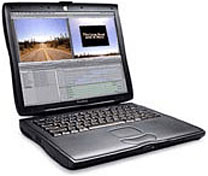
I recently acquired a beautiful Macintosh PowerBook G3 (Bronze Keyboard) via Craiglist. Known better by it’s nickname of “Lombard,” it features the smooth curvy lines and black case plastics that characterized Apple’s stylish portables from 1998-2000. As the third generation of the G3 PowerBook, this unit has a quirky combination of new and old features. This is the first portable Mac with a “new world ROM” – and the last with a built-in SCSI port. For the first time in the Apple portable line USB replaces ADB for connecting mice and keyboards, and the multicolored Apple logo is replaced by a white one.
Continue reading »
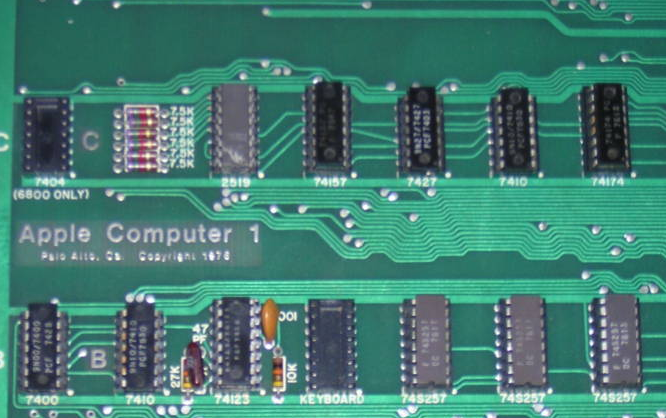
There’s an amazing group of early Apple items up for auction on eBay from a pair of former employees who worked there from 1977 to 1984. The items include a genuine Apple I computer, handwired by Steve Wozniak (including a certificate of authenticity signed by Woz himself), an early mouse prototype, a Newton prototype, and even an Apple telephone directory from December of 1983.
You can find more info about the items here. Bidding on the Apple I starts at $30K. Buy it for your local museum and deduct the contribution from your taxes – help preserve this important artifact! Since eBay items eventually disappear I’ve saved a PDF of the auction listing for it here: Apple I auction.
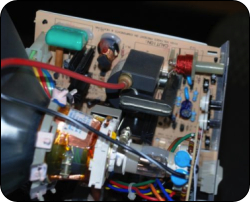
I recently received a Macintosh Classic and Classic II from a fellow in San Antonio. While both were working before they were shipped the Classic II will not boot properly; there’s no startup chime and there are vertical stripes on the display.
To diagnose this symptom and plan a fix I found the following resources helpful:
- Cracking Open the Apple Macintosh Classic
- Macintosh Classic/Classic II/Performa 200 Service Manual (115 page PDF)
I plan to replace the “power/sweep board” and have one on order that I found on ebay. With luck that will resolve the problem and the Classic II will be healthy again! I’ll keep you posted.

If you aren’t sure which versions of the Mac OS are compatible with your Macintosh, here are some excellent resources to find out:
AppleCare’s Knowledge Base includes several relevant articles on the topic:
- System Software: Version Matrix, System 6.0.x to 7.0.1
- System 7.1 through Mac OS 7.6: Compatibility With Macintosh Computers
- Mac OS 8 and 9 Compatibility with Macintosh Computers
- Mac OS: Versions, builds included with PowerPC Macs (since 1998)
- Mac OS X Versions (builds) included with Intel-based Macs
My favorite tool for finding a quick answer to this question is Ian Page’s awesome MacTracker, a comprehensive collection of vital information about every model of Macintosh that is available as a free Mac OS X or Windows application, or via a web site that’s optimized for viewing on an iPhone or iPod Touch.
Now, as for which version of the Mac OS is optimal for your model of Macintosh, well, that’s beyond the scope of this article. The folks over at lowendmac.com have a number of helpful articles on this topic, though.

Dan Knight wrote an article for lowendmac.com back in 2001 entitled System 6 or System 7? In the article he describes several ways to switch between using System versions on the same Macintosh, and recommends a utility called System Picker:
System picker is a freeware utility that lets you pick which one of two or more System Folders on your hard drive will be active at the next startup. Kevin Aitken’s little utility does this by “blessing” the system you select. (Blessing is Apple’s name for selecting one System Folder as the active one.)
Unfortunately, the link to download System Picker from Apple’s Developer site no longer works. I was able to locate a copy after a good bit of hunting, and that experience led me to decide that I would begin to collect and archive legacy Mac tools to save myself and others the time and frustration in the future. Until that archive is established you can find System Picker here.
I do not yet have personal experience with System Picker but plan to test it soon. Be sure to read Dan’s excellent article for tips on how to install two different operating system versions on the same drive. Not sure which versions of the OS your Mac supports? See this article to find out!